

Interface Tour
This tour helps you quickly find your way around Legal Hints. We’ll show you how the side menu is organized and where to find each feature, so you know from the start where to look.
The side menu
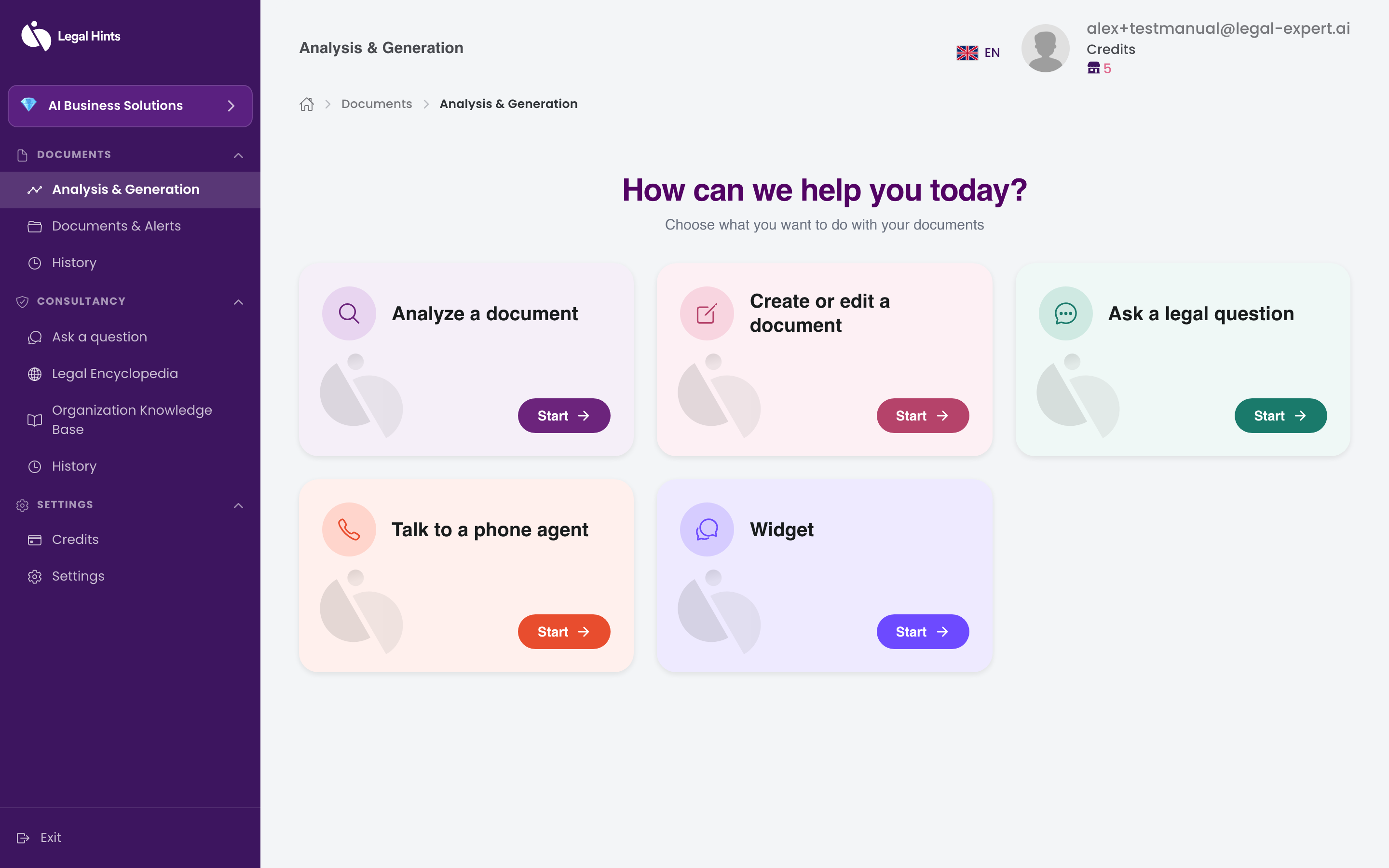
Section titled “The side menu”The side menu is the main place from which you navigate the application. Features are divided into three groups:
- Documents — the tools for working with documents: Analysis & Generation, Documents & Alerts, and History.
- Consultation — Ask a question, Legislative Encyclopedia, Organization Knowledge Base, and History.
- Settings — Credits, Settings, and Log out.
The 5-card hub
Section titled “The 5-card hub”After signing in you land on the main hub “Analysis & Generation”, the “What can we help you with today?” home screen with five cards. Each card takes you to an important feature:
- Analyze a document — document analysis, comparing changes between versions, signature verification, and text extraction (OCR).
- Create or edit a document — create legal documents (contracts, NDAs, terms and conditions, privacy policies, and others).
- Ask a legal question — ask the AI assistant a legal question.
- AI Phone Agent — the organization’s AI voice assistant.
- Widget — the widget that can be embedded on the organization’s website.
Where to find each feature
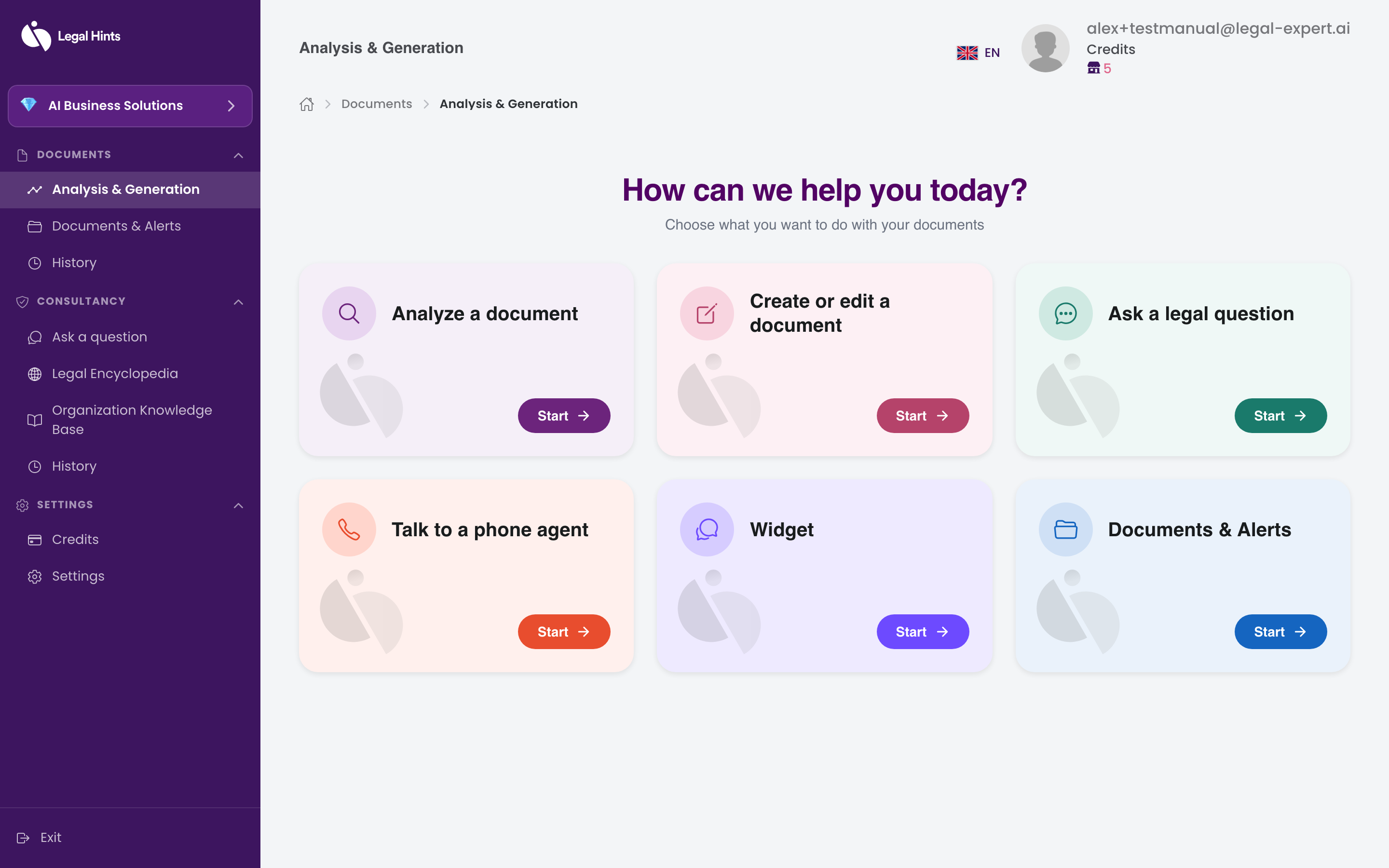
Section titled “Where to find each feature”- To analyze or generate a document, use the Analyze a document and Create or edit document cards on the hub, or the Documents group in the menu. See Analyzing a document.
- To ask a legal question, use the Ask a legal question card or the Consultation group. See How to ask a question.
- For business services (the AI phone agent and the widget), use the dedicated cards on the hub.
- For credits and account settings, open the Settings group in the menu. See How credits work.
Result
Section titled “Result”You now know how the application is structured: the side menu with three groups and the hub with five cards. From here you can quickly reach any feature you need.