

Analyzing a Document
Document analysis helps you quickly understand a contract or legal document: the AI assistant goes through the text, identifies important clauses, flags risks, and suggests a response you can use in negotiation or correspondence.
When to use analysis
Section titled “When to use analysis”Use this tool when you have received a document (for example, a contract) and want to see briefly what it contains, where the sensitive points are, and how you can respond, without manually reading every page.
-
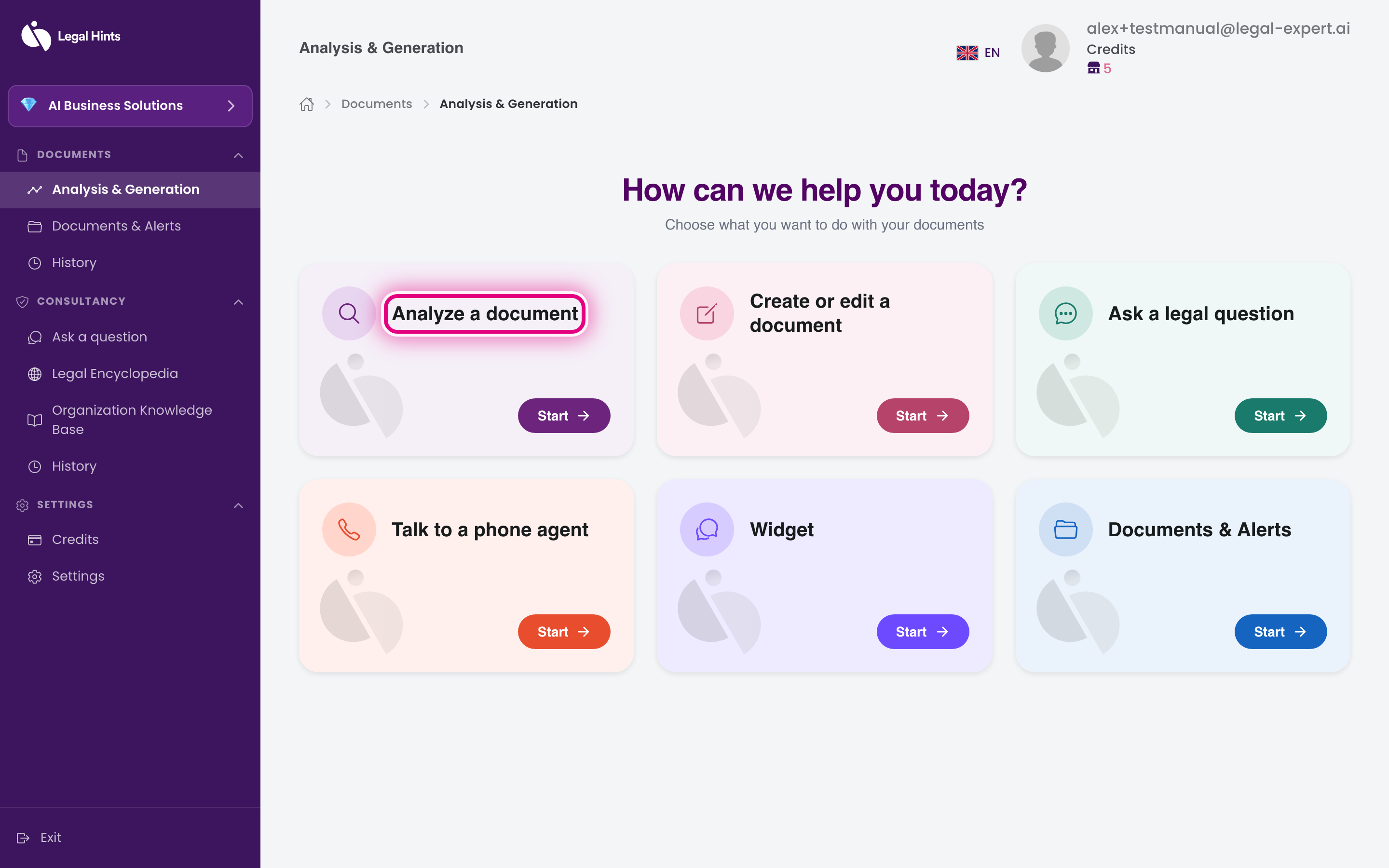
After signing in you land on the main hub “Analysis & Generation”. Press the Analyze a document card.
-
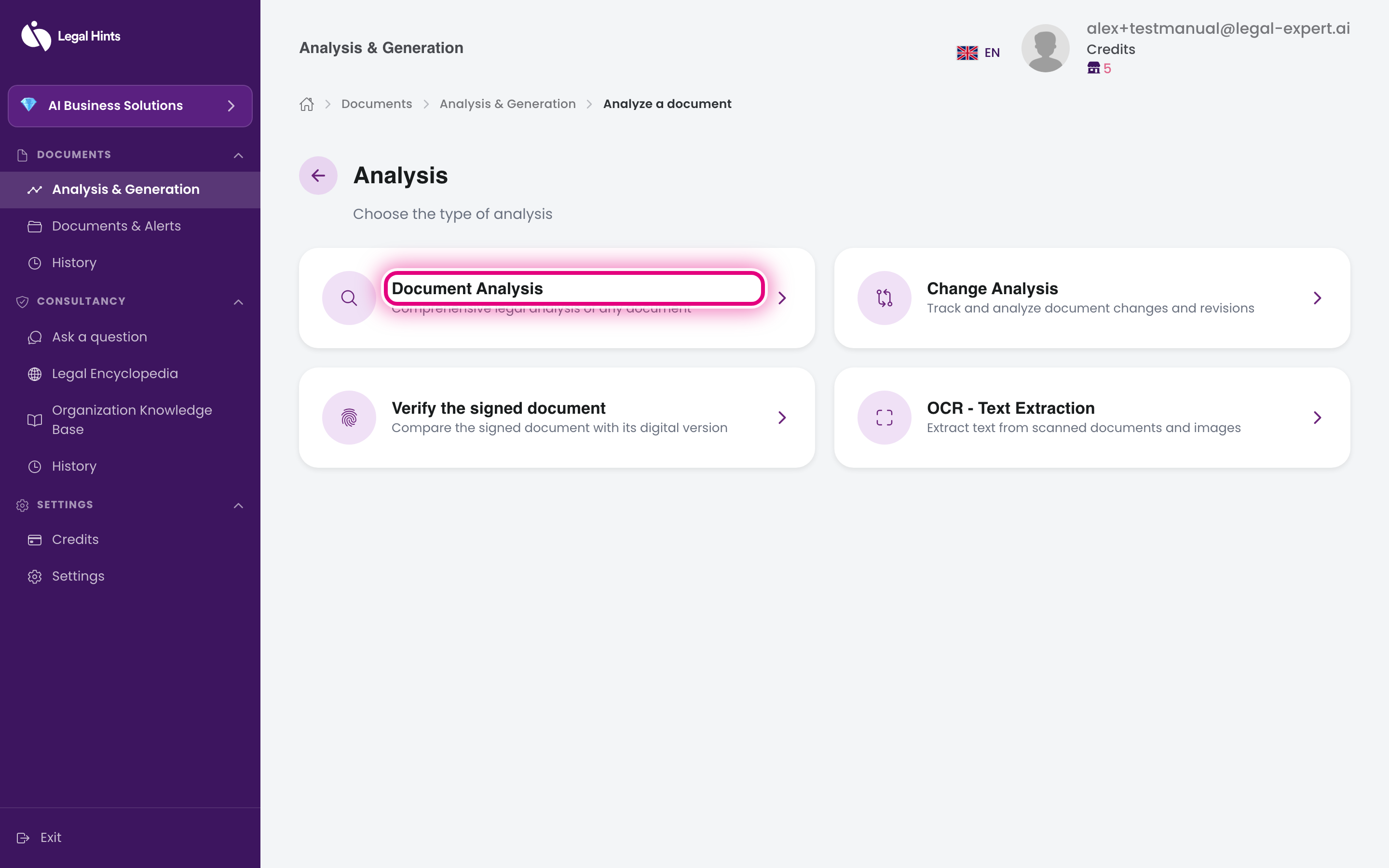
On the “Choose analysis type” screen, select Document analysis.
-
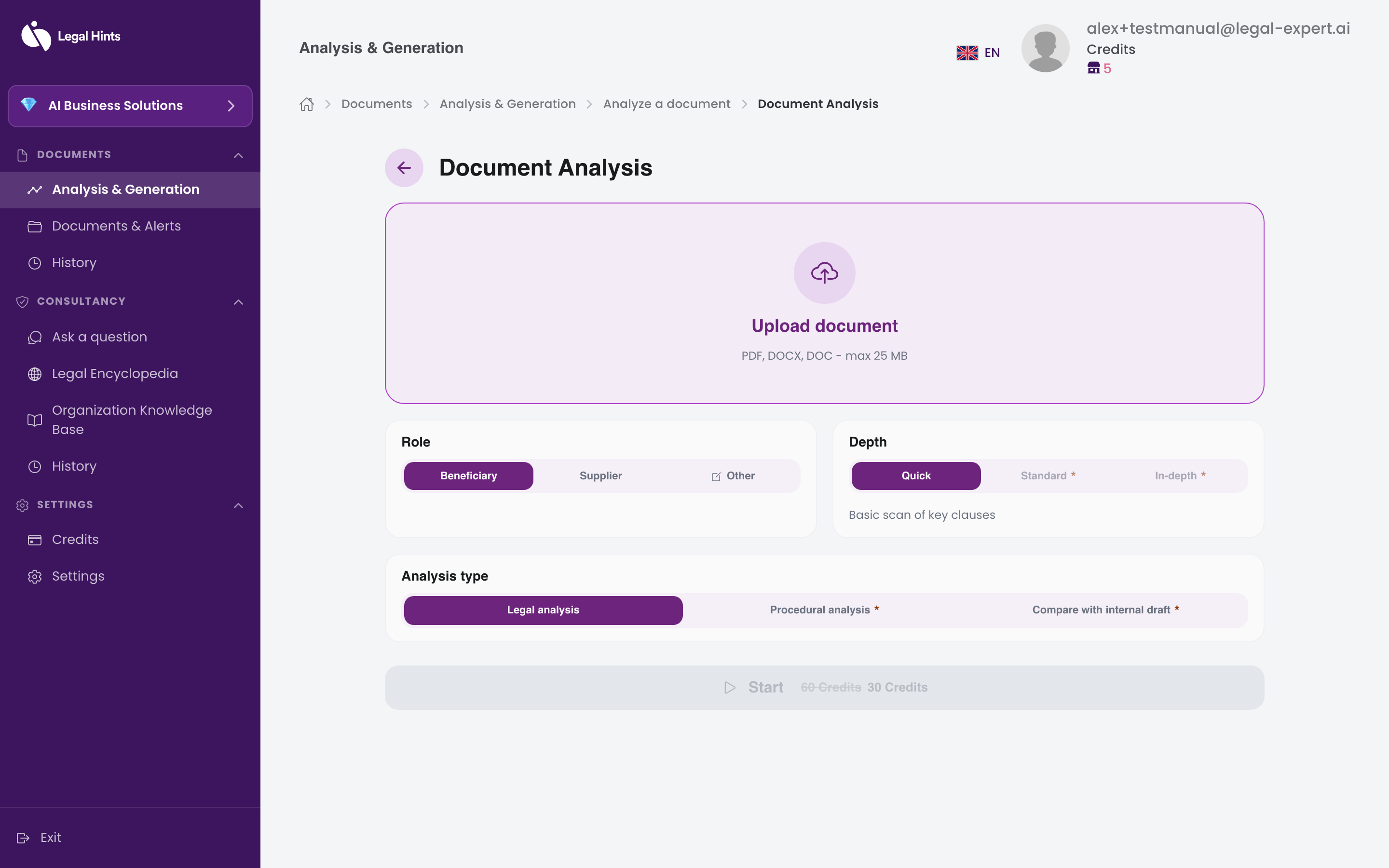
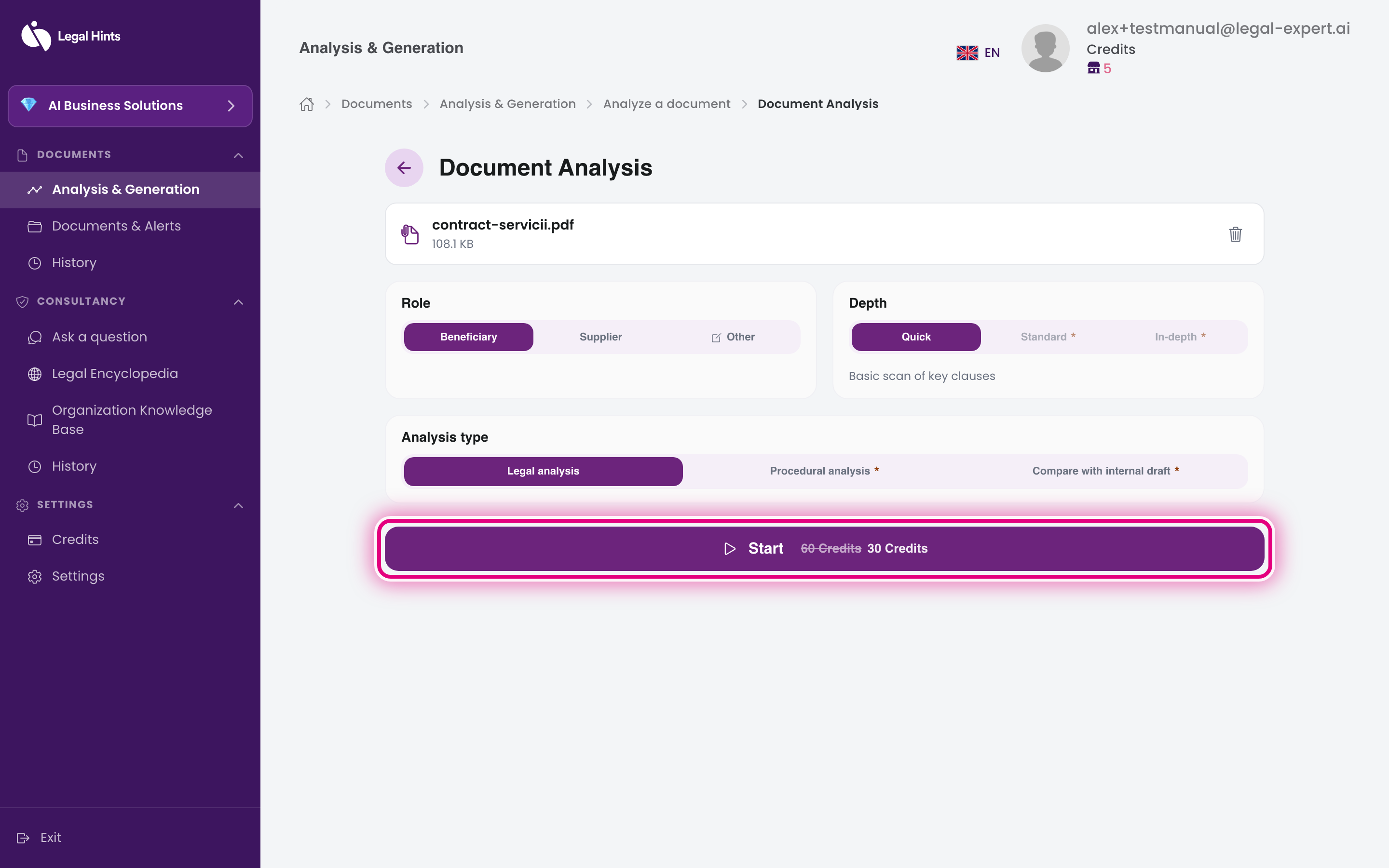
Upload the file you want to analyze: drag it into the “Upload document” area or press to select it from your device. Then choose the analysis options: Role (Beneficiary, Provider, or Other), Depth (Quick, Standard, or In-depth), and Analysis type (Legal analysis, Procedure analysis, or Compare with internal draft).
-
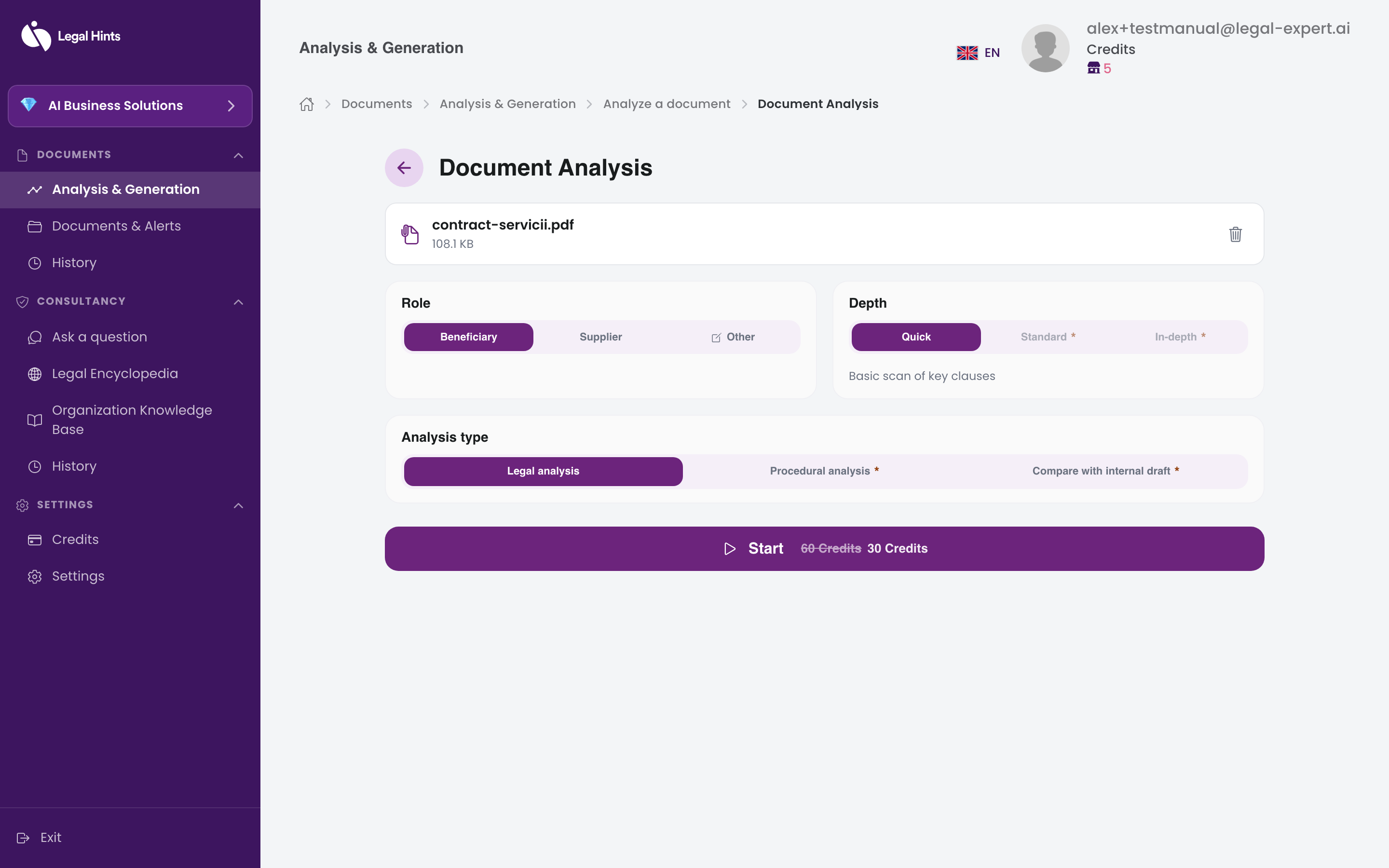
After uploading, the file appears in the list with its name and size. Check the options you selected.
-
Press Start to begin the analysis. The button displays the number of credits consumed.
-
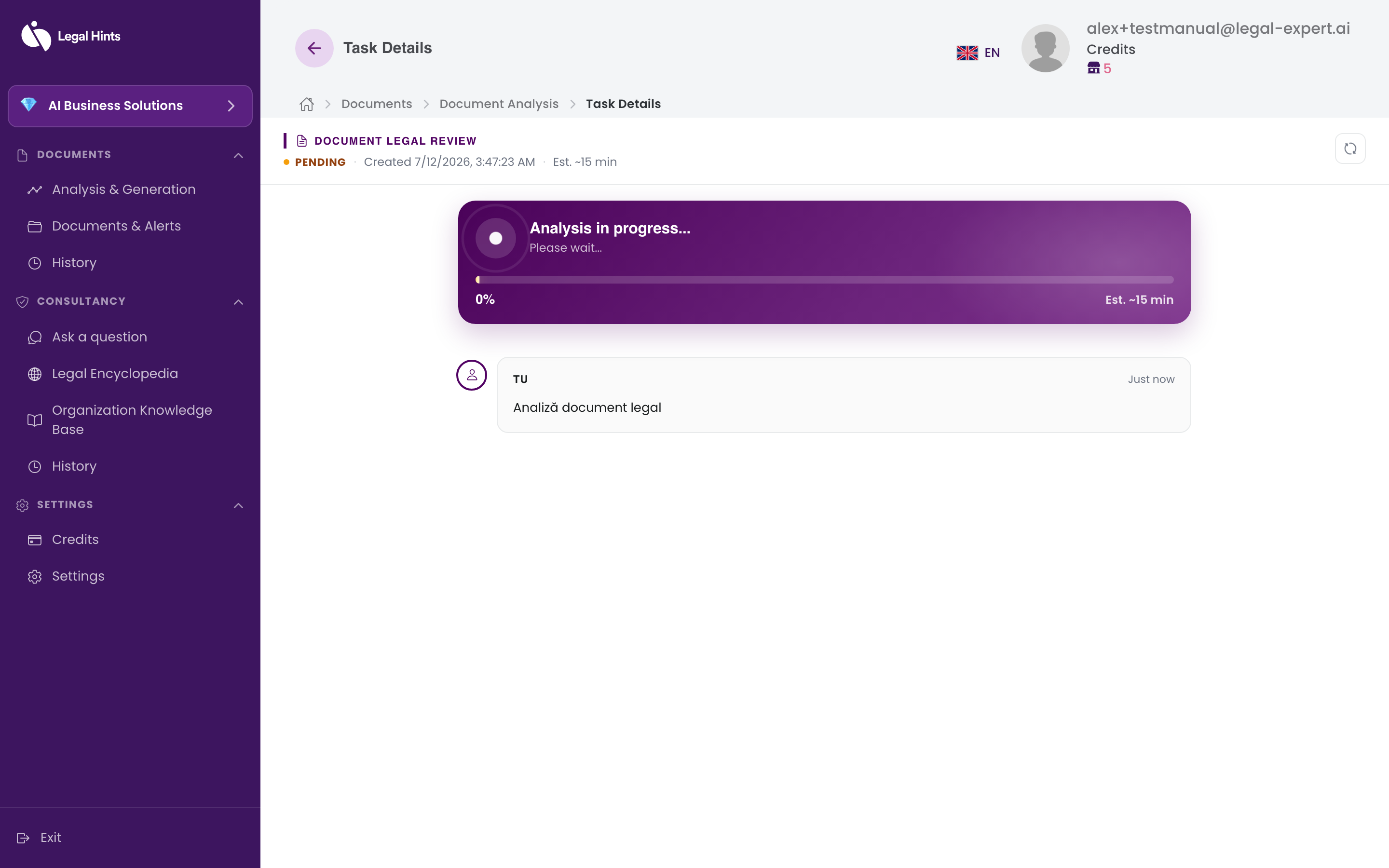
Wait for processing. The “Task Details” page opens, where you see the analysis status and the steps taken (the document is analyzed, split into groups, and the sections are grouped). An analysis takes around 15 minutes.
-
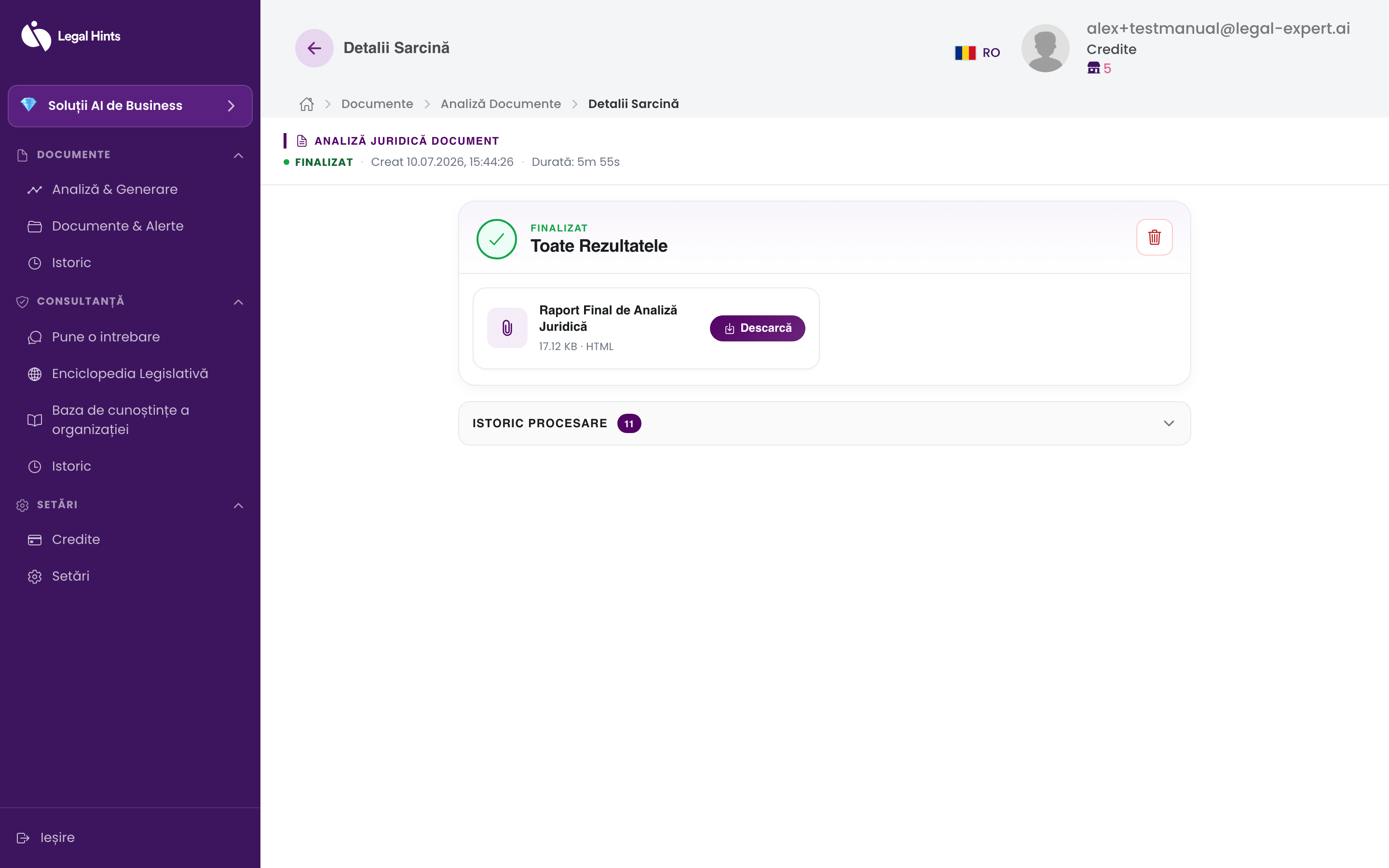
When the analysis is ready, the status becomes Completed and the Final Legal Analysis Report appears. You can open or download it with the Download button; the report includes the important clauses, the risks identified, and a suggested response. Below the report, the Processing history section shows the steps taken by the assistant.
Result
Section titled “Result”You get a clear report on the document: what clauses it contains, what risks it presents, and a suggested response. The report and the task remain available in Documents & Alerts and in History.