

Comparing Changes
Change analysis compares two versions of the same contract and highlights the differences between them, in redline style (marking what was added, deleted, or modified). This way you quickly see what changed between versions, without reading both documents side by side.
When to use comparison
Section titled “When to use comparison”Use this tool when you have received a revised version of a contract and want to see exactly what was changed compared to the previous version.
-
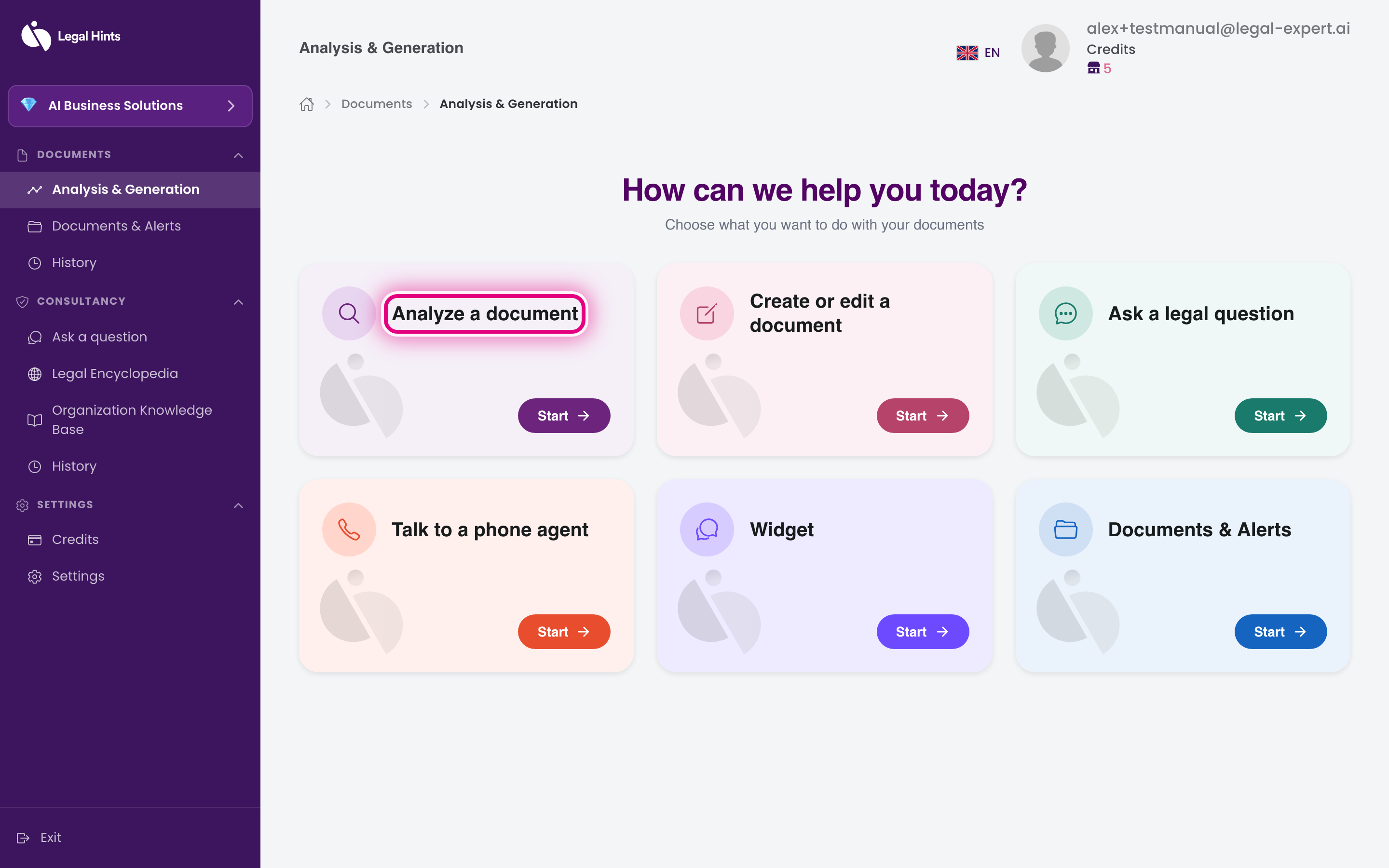
On the main hub “Analysis & Generation”, press the Analyze a document card.
-
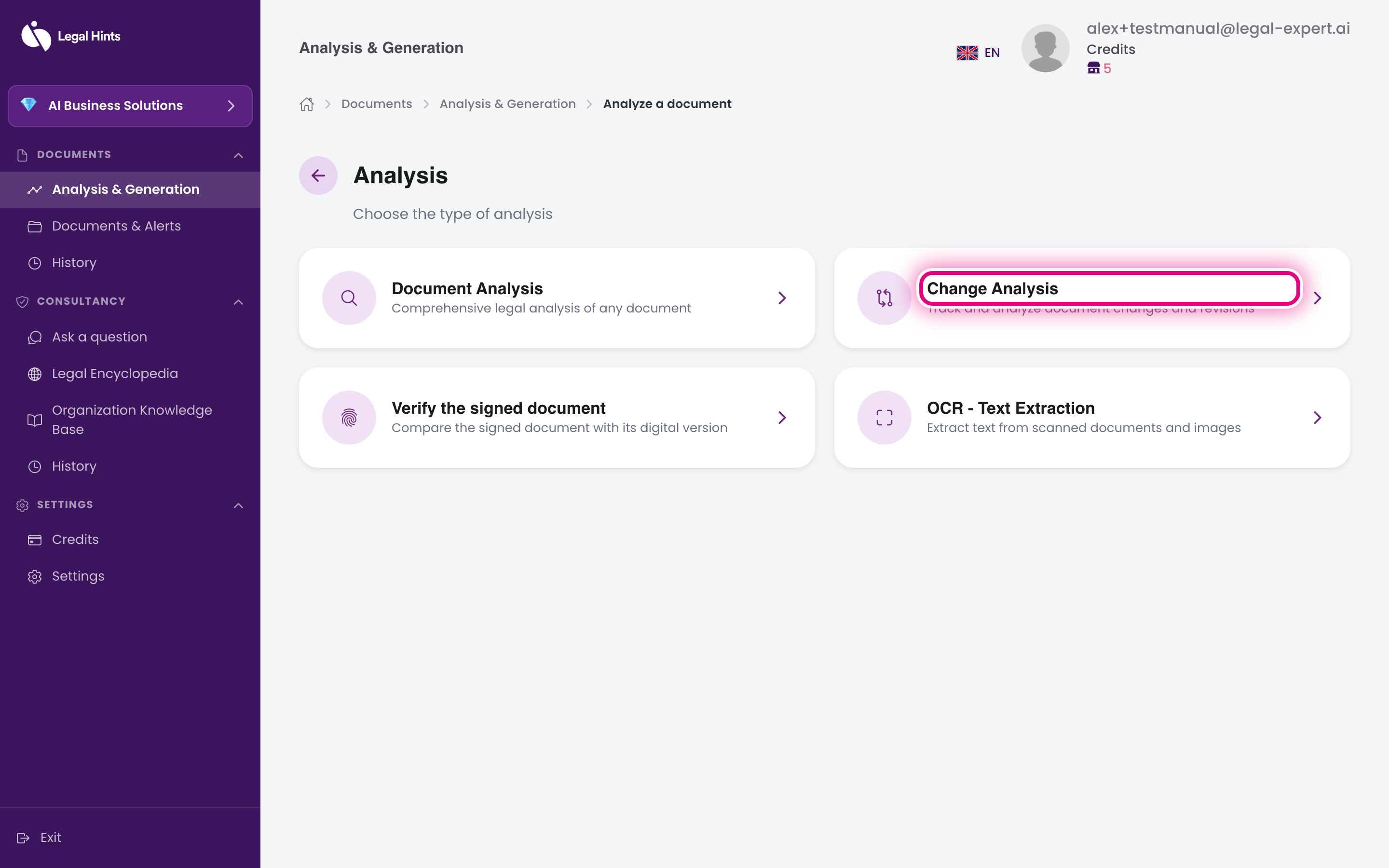
On the “Choose analysis type” screen, select Change analysis.
-
Upload the first version of the contract (the original version).
-
Upload the second version of the contract (the revised version).
-
Confirm and wait for processing. The assistant compares the two documents and prepares the highlighted differences.
-
Review the result: the differences are highlighted in redline style, so you can see what was added, deleted, or modified.
Result
Section titled “Result”You get a clear view of all the changes between the two versions. The task remains available in Project history.